Overview
Scalper Pro is a manual trading tool that adds on-chart execution buttons to NinjaTrader 8. Click a button to enter a trade, and Scalper Pro automatically places your profit target order. No more fumbling with order entry windows or forgetting to set your exit - one click does it all.
This is not an automated trading bot. You make the trading decisions. Scalper Pro just makes execution faster and ensures your profit targets are always in place. It's the speed of one-click trading combined with the discipline of consistent exit orders.
Who Is Scalper Pro For?
- Discretionary scalpers who want faster execution without sacrificing control
- Active day traders who take multiple trades and need consistent order management
- Traders who forget stops/targets and want automatic order placement
- Anyone tired of slow order entry who wants one-click convenience
The Scalper Pro Advantage
One-Click Execution
Enter Long, Enter Short, Exit Long, Exit Short, Exit All - five buttons right on your chart.
Auto Profit Targets
Every entry automatically places a limit order at your target. Never forget to set your exit again.
Optional Stop Loss
Enable automatic stop loss orders if you want. Disabled by default for traders who prefer manual stops.
Position Stacking
Add to your position with multiple entries. Each entry gets its own profit target order.
Features
Scalper Pro keeps it simple - fast execution with automatic order management.

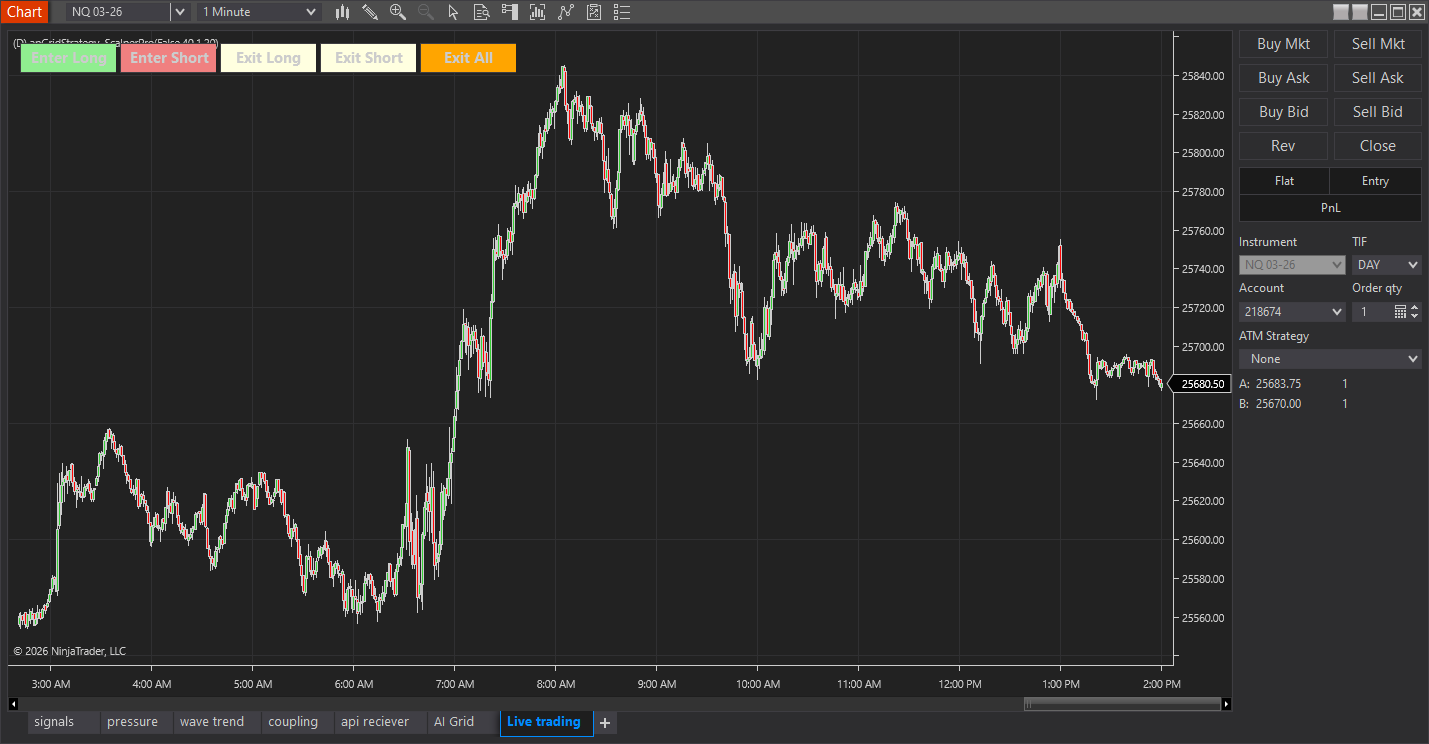
Scalper Pro trading buttons on chart
On-Chart Trading Buttons
Five color-coded buttons appear directly on your chart: Enter Long (green), Enter Short (red), Exit Long (yellow), Exit Short (yellow), and Exit All (orange). Click to execute instantly at market price.
Automatic Profit Targets
The moment your entry fills, a limit order is placed at your configured profit target (default: 40 ticks). For longs, the target is above entry. For shorts, it's below. The order stays working until price reaches your target or you exit manually.
Optional Stop Loss Protection
Enable automatic stop loss in the settings (disabled by default). When enabled, a stop market order is placed at your configured distance (default: 20 ticks) every time you enter. Many traders prefer mental stops or manual placement - the choice is yours.
Position Stacking (Scale In)
Build a position over multiple entries. Click Enter Long three times to accumulate 3 contracts (or 3x your quantity setting). Each entry is tracked separately with its own profit target, allowing you to scale in at different price levels.
Exit All Panic Button
One click to flatten everything. Exit All closes your entire position at market and cancels all working profit target and stop loss orders. When you need to get out immediately, this button has you covered.
FIFO Exit Order
When you click Exit Long or Exit Short, contracts are closed in first-in, first-out order. Your oldest entries exit first, which is the standard accounting method and simplifies tracking.
Trade Faster With One Click
Get Scalper Pro and execute trades instantly with automatic profit targets. Setup guide included.
How It Works
Scalper Pro is straightforward: click a button, get a trade with automatic exit orders.
Entry Flow
- You click Enter Long or Enter Short on the chart
- Market order executes for your configured quantity
- Profit target limit order placed automatically at your target distance
- Stop loss placed (if enabled) at your configured stop distance
Exit Scenarios
Price hits profit target: Your limit order fills automatically. Position closed at target price. If you had multiple entries, each has its own target - they fill independently as price reaches each level.
Price hits stop loss (if enabled): Your stop market order fills. Position closed at market. The loss is limited to your configured stop distance.
You click Exit Long/Short: Closes your configured quantity at market. Working orders for those contracts are cancelled.
You click Exit All: Flattens entire position at market. Cancels ALL working profit targets and stop losses.
Position Stacking Example
Say you're trading ES with Quantity set to 1 and Profit Target at 40 ticks:
- Click Enter Long at 5000.00 → Long 1 contract, profit target at 5010.00
- Price dips, click Enter Long again at 4998.00 → Long 2 contracts total, second target at 5008.00
- Price rallies to 5008.00 → Second entry's profit target fills, now long 1 contract
- Price continues to 5010.00 → First entry's profit target fills, flat
Each entry is independent. You can scale in at better prices and each position exits at its own profit target.
Settings
Scalper Pro has four configurable parameters. Access them by right-clicking the strategy in the Strategies tab.
| Parameter | Default | Description |
|---|---|---|
| Quantity | 1 | Number of contracts per button click. Set to 2 to trade 2 contracts each time you click Enter Long/Short. |
| Profit Target (Ticks) | 40 | Distance from entry where the profit target limit order is placed. 40 ticks on ES = 10 points = $500/contract. |
| Enable Stop Loss | False | When enabled, places a stop market order with each entry. Disabled by default - enable if you want automatic stops. |
| Stop Loss (Ticks) | 20 | Distance from entry for stop loss (only used if Enable Stop Loss is true). 20 ticks on ES = 5 points = $250/contract. |
Tip: Start with Defaults
The default 40-tick profit target gives room for price to move while still capturing meaningful profits. If you're scalping for smaller moves, try 8-16 ticks. For swing-style trades, increase to 80+ ticks. Always paper trade new settings first.
Getting Started
Get Scalper Pro running in minutes.
Installation
- Download: Get the Scalper Pro zip from your AlgoGemix dashboard
- Import: In NinjaTrader 8: Tools > Import > NinjaScript Add-On
- Activate: Enter your license key (emailed after purchase)
- Restart: Restart NinjaTrader 8 to complete installation
Adding to Chart
- Open a chart for the instrument you want to trade
- Right-click the chart and select Strategies
- Find ScalperPro in the list and select it
- Configure settings (Quantity, Profit Target, etc.)
- Set Account to your trading account (or Sim for paper trading)
- Click OK - buttons appear on your chart
Important: Enable Strategy
Buttons Only Work in Real-Time
The trading buttons only function when the strategy is running in real-time mode (live or sim). Make sure your chart has real-time data and the strategy shows "Enabled" in the Strategies tab. If buttons don't respond, check that the strategy isn't disabled or disconnected from data.
Paper Trade First
Always test on simulation before trading live. Connect to your sim account, run Scalper Pro, and practice the button workflow. Make sure you understand how entries, exits, and position stacking work before risking real money.
Frequently Asked Questions
Is Scalper Pro an automated trading bot?
No, Scalper Pro is a manual trading tool. You decide when to enter trades using on-chart buttons. The automation is in the order management - profit targets and stop losses are placed automatically when you enter a position, so you don't have to manually set them each time.
What do the on-chart buttons do?
Scalper Pro adds 5 buttons to your chart: Enter Long (buy at market), Enter Short (sell at market), Exit Long (close long contracts), Exit Short (close short contracts), and Exit All (flatten entire position and cancel all working orders). Each button executes instantly when clicked.
How does the automatic profit target work?
When you click Enter Long or Enter Short, Scalper Pro immediately places a limit order at your specified profit target distance (default 40 ticks). For longs, the profit target is placed above your entry. For shorts, it's placed below. The order stays working until filled or you exit manually.
Can I add to my position (scale in)?
Yes, Scalper Pro supports position stacking. You can click Enter Long multiple times to add contracts to your long position (up to 100 entries). Each entry gets its own profit target order. This lets you scale into positions at different price levels.
Is the stop loss required?
No, the stop loss is optional and disabled by default. You can enable it in the strategy settings and set your preferred stop distance in ticks. When enabled, a stop market order is placed automatically with each entry. Many traders prefer to manage stops manually or use mental stops.
What happens when I click Exit All?
Exit All flattens your entire position at market price and cancels all working profit target and stop loss orders. It's a panic button that gets you completely out of the market instantly. Use it when you need to close everything immediately regardless of profit or loss.