Overview
Grid Pro is a fully automated grid trading strategy for NinjaTrader 8. Once configured, it places limit orders at calculated grid levels, manages entries and exits, and protects your account with configurable profit targets and stop losses - all without manual intervention.
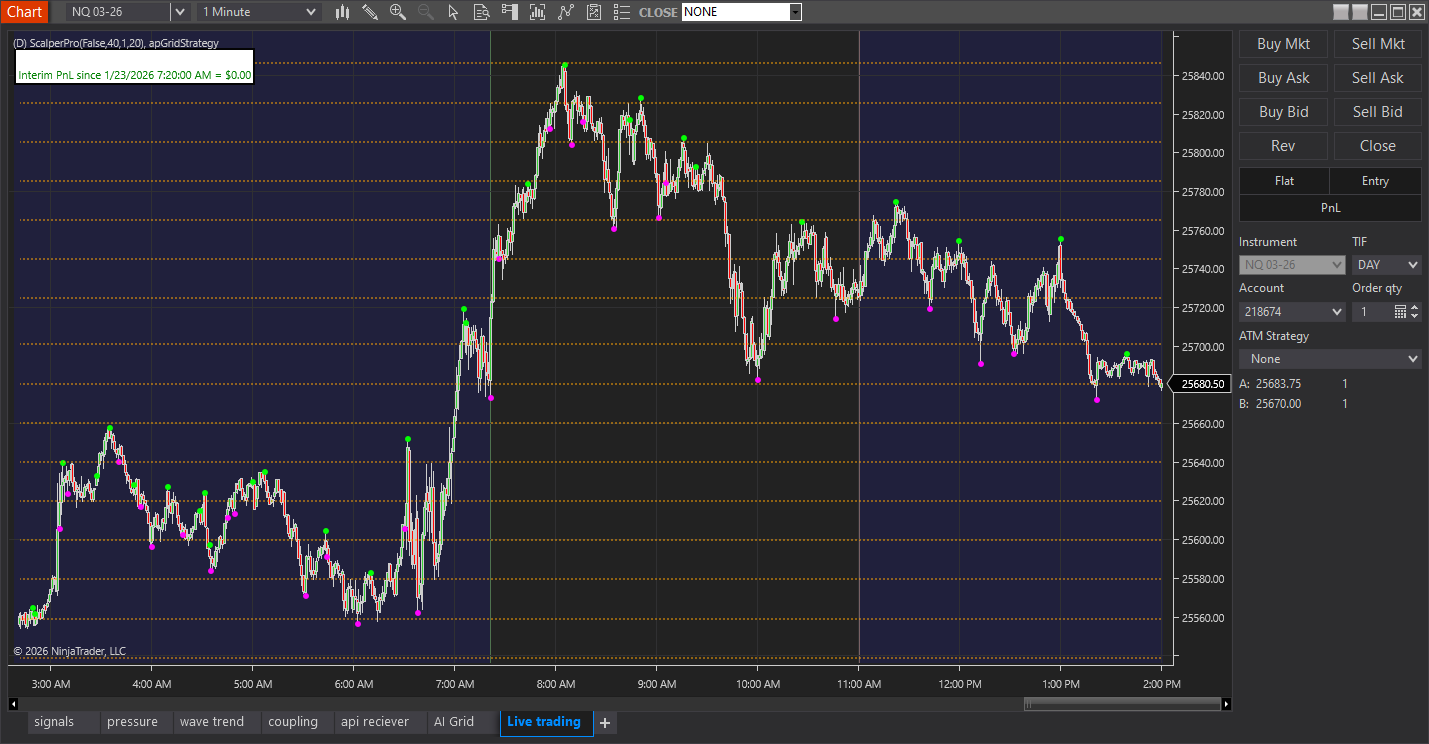
The strategy adapts to market conditions using ATR-based grid spacing (default) or swing-based calculations. Grid levels widen in volatile markets and tighten in calm conditions. Visual grid lines on your chart show exactly where orders will be placed.
Who Is Grid Pro For?
- Range traders who want to automate capturing oscillations within a trading range
- Systematic traders who prefer rules-based execution without emotional interference
- Directional traders who want long-only or short-only grid modes with bracket orders
- Risk-conscious traders who need daily and interim loss limits built into the strategy
Key Capabilities
Fully Automated
Places orders, manages positions, and handles exits automatically. You configure, it executes.
Three Grid Sizing Modes
Custom (fixed ticks), AutoFromSwings, or AutoFromATRs. ATR mode adapts to volatility automatically.
Trade Mode Selection
Both directions, long-only bracket, short-only bracket, or disabled for monitoring.
Dollar-Based Risk Limits
Daily and interim profit targets and stop losses. Pause trading after interim limits, stop for the day after daily limits.
Features
Grid Pro includes everything needed for professional grid trading automation.
ATR-Based Dynamic Grid Spacing
The default AutoFromATRs mode calculates grid distance using the ATR indicator (20-period default) multiplied by a configurable factor (default 4x). Grid automatically widens in volatile markets and tightens in calm conditions. A smoothing parameter (default 50) prevents erratic changes.
Swing-Based Grid Sizing
AutoFromSwings mode calculates grid distance from recent swing highs and lows. Configurable swing strength (default 15 bars) and number of swings to measure (default 20). Optional swing markers on chart show the detected swings.
Four Trade Modes
Both_OneAtATime (default) trades both directions but only one at a time. LongOnly_Bracket and ShortOnly_Bracket restrict to one direction with bracket orders. None disables trading for grid visualization only.
Dollar-Based Profit Targets & Stop Losses
Two tiers of limits: Daily targets/stops that reset each session, and Interim targets/stops that pause trading for a configurable time (default 10 minutes) before resuming. Both can include or exclude unrealized P&L. Set to 0 to disable.
Dual Trading Time Windows
Configure two separate trading windows per day. Defaults: Window 1 is 18:30-7:00, Window 2 is 9:00-15:00. Strategy automatically exits positions 30 seconds before session close (configurable).
Visual Grid Lines on Chart
See exactly where grid levels are with customizable visual lines. Configure color, dash style, width, and opacity. Grid recalculates and redraws as market conditions change. Centre line shows current grid anchor.
Automate Your Grid Trading
Get Grid Pro and let it handle entries, exits, and risk management. Full setup guide included.
Settings
Grid Pro has extensive configuration options organized into groups.
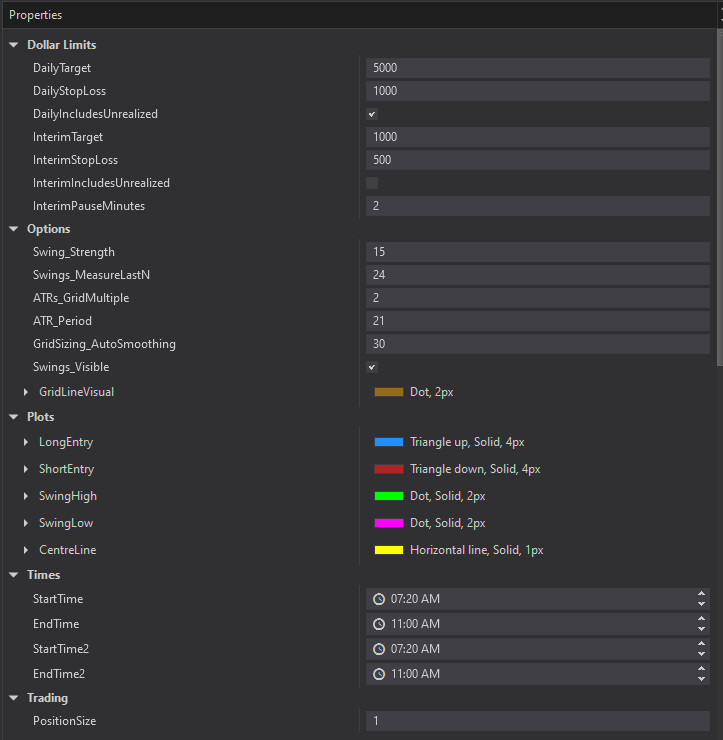
Grid Pro settings panel in NinjaTrader 8
Parameters
| Parameter | Default | Description |
|---|---|---|
| TradeMode | Both_OneAtATime | Direction to trade: Both, LongOnly_Bracket, ShortOnly_Bracket, or None |
| GridSizing | AutoFromATRs | How to calculate grid distance: Custom, AutoFromSwings, or AutoFromATRs |
| GridTicks_Custom | 20 | Fixed grid size in ticks (only used if GridSizing = Custom) |
| GridTicks_Minimum | 15 | Minimum grid size in ticks (prevents too-tight grids in low volatility) |
| ATRs_GridMultiple | 4 | ATR multiplier for grid sizing (e.g., 4x ATR = grid distance) |
| ATR_Period | 20 | Period for ATR calculation |
| StopOrderSafetyTicks | 2 | Buffer ticks for stop order placement |
Trading
| Parameter | Default | Description |
|---|---|---|
| PositionSize | 1 | Contracts/shares per grid level entry |
| Target_GridPercent | 100 | Profit target as % of grid distance (5-140%). 100% = full grid spacing. |
| Stoploss_GridPercent | 0 (Off) | Stop loss as % of grid distance. 0 = disabled (no per-trade stop). |
Dollar Limits
| Parameter | Default | Description |
|---|---|---|
| DailyTarget | 0 (Off) | Daily profit target in dollars. Stops trading for day when hit. |
| DailyStopLoss | 0 (Off) | Daily loss limit in dollars. Stops trading for day when hit. |
| InterimTarget | 0 (Off) | Interim profit target in dollars. Pauses trading when hit. |
| InterimStopLoss | 0 (Off) | Interim loss limit in dollars. Pauses trading when hit. |
| InterimPauseMinutes | 10 | Minutes to pause after interim limit hit before resuming (0-1440). |
Times
| Parameter | Default | Description |
|---|---|---|
| StartTime | 18:30 | Start of first trading window |
| EndTime | 7:00 | End of first trading window |
| StartTime2 | 9:00 | Start of second trading window |
| EndTime2 | 15:00 | End of second trading window |
How It Works
Grid Pro calculates grid levels, places orders, and manages trades automatically.
Grid Calculation
- Grid distance calculated using your chosen method (ATR, Swings, or Custom ticks)
- Grid anchor set at current price when strategy starts
- Buy levels placed below the anchor at grid distance intervals
- Sell levels placed above the anchor at grid distance intervals
- Grid recalculates periodically when using dynamic modes (ATR/Swings)
Order Execution
Entry: When price reaches a grid level, limit order fills. In Both mode, only one direction trades at a time - if you're long, no new shorts until position closes.
Target: Profit target placed at Target_GridPercent of grid distance. Default 100% means target at the next grid level.
Stop (optional): If Stoploss_GridPercent > 0, stop loss placed at that percentage of grid distance from entry.
Risk Management Flow
- Interim limits: If InterimTarget or InterimStopLoss hit, trading pauses for InterimPauseMinutes
- Daily limits: If DailyTarget or DailyStopLoss hit, trading stops for the session
- Session close: All positions exited 30 seconds before session end (configurable)
- Time windows: Trading only active during configured windows
Getting Started
Get Grid Pro running in NinjaTrader 8.
Installation
- Download: Get the Grid Pro zip from your AlgoGemix dashboard
- Import: In NinjaTrader 8: Tools > Import > NinjaScript Add-On
- Activate: Enter your license key (emailed after purchase)
- Restart: Restart NinjaTrader 8 to complete installation
Adding to Chart
- Open a chart for your instrument (ES, NQ, CL, etc.)
- Right-click the chart and select Strategies
- Find apGridStrategy (Grid Pro) in the list
- Configure parameters (grid sizing, trade mode, position size, limits)
- Set Account to Sim for testing or your live account
- Click OK - grid lines appear and strategy begins monitoring
Recommended First Steps
Paper Trade First
Always run Grid Pro on a simulation account for at least 1-2 weeks before live trading. This lets you understand how the grid behaves in different market conditions and fine-tune your settings without risking capital.
- Start with defaults: The default ATR-based sizing works well for most futures
- Set daily stop loss: Configure DailyStopLoss based on your account size
- Monitor the grid: Watch how grid levels shift with volatility
- Review trades: Check the NinjaTrader Trade Performance window daily
Frequently Asked Questions
What are the grid sizing options?
Grid Pro offers three grid sizing methods: Custom (fixed tick value you specify), AutoFromSwings (calculates spacing from recent swing highs and lows), and AutoFromATRs (default - uses ATR indicator multiplied by a factor). ATR-based is recommended as it adapts to market volatility automatically.
What trade modes are available?
Grid Pro has four trade modes: Both_OneAtATime (trades long and short but only one direction at a time), LongOnly_Bracket (only takes long entries), ShortOnly_Bracket (only takes short entries), and None (disables trading for monitoring only). The default is Both_OneAtATime.
How do the profit targets and stop losses work?
Grid Pro has two levels of dollar-based limits: Daily (DailyTarget and DailyStopLoss) which reset each session, and Interim (InterimTarget and InterimStopLoss) which can pause trading for a configurable number of minutes before resuming. Both can include unrealized P&L. Set any limit to 0 to disable it.
Can I configure trading hours?
Yes, Grid Pro supports two configurable trading windows per day. The default windows are 18:30-7:00 and 9:00-15:00. You can adjust both start and end times for each window. The strategy automatically exits positions 30 seconds before session close.
What is the Target_GridPercent setting?
Target_GridPercent sets your profit target as a percentage of the grid spacing. The default is 100%, meaning if your grid spacing is 20 ticks, the profit target is 20 ticks. Set to 50% for a 10-tick target on a 20-tick grid. Range is 5-140%.
Does Grid Pro show the grid on the chart?
Yes, Grid Pro displays visual grid lines directly on your chart. The grid line appearance (color, style, opacity) is customizable via the GridLineVisual setting. You can also optionally display swing high/low markers to see how swing-based grid sizing is calculated.